
New Release: Notification Customisation (Duration: 2 mins) 7th Apr
We've released email, SMS and device push notifications to give you greater visibility and control
 0
0Frequently Asked Questions
- How do I find the notification settings in my account?
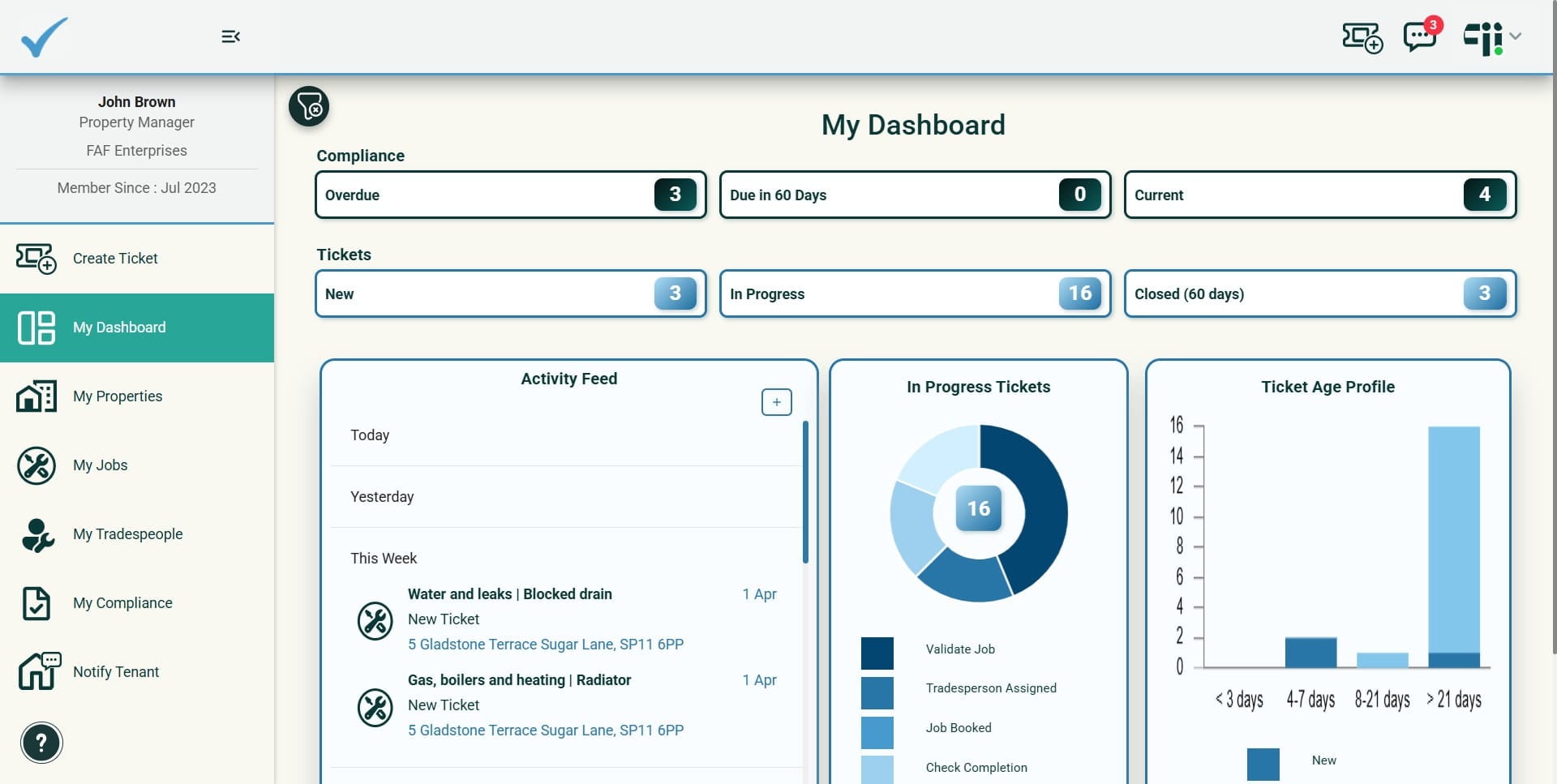
Click your account icon to open Account and personal settings. Account Settings includes the new Email and SMS notification options and links to Notification Preferences and My Details for push notifications.
- How do I choose which email and SMS messages I receive?
Open Notification Preferences from Account Settings, pick the email and SMS options related to the jobs you’re account is involved in, then scroll down and save your selections.
- How do I enable or disable push notifications?
Go to My Details to authorise personal push notifications. You can turn all push notifications off at once using the top option, or manage them individually in the list. After making changes, scroll down to save.
- I enabled push notifications in the app but I’m not receiving them — what should I check?
Enabling push notifications in the app is necessary but not sufficient. You must also enable push notifications on every device where you want to receive them. Your browser (e.g., Safari, Chrome) should prompt you to accept; if you don’t receive notifications, check the browser or device push notification settings because they can be ON in the app but OFF in the browser or device.
- What should I do if my changes don’t seem to take effect?
Make sure you scroll down and save after changing any Notification Preferences or push settings. If push notifications still don’t arrive, verify the device/browser-level notification permissions.