
New Release: New Quotation feature (Duration: 4mins) 4th Feb
This guide provides an end-to-end workflow for managing a job in Fiixit—from scheduling and assigning a tradesperson to booking the job, generating and sending quotes and quote requests, handling tickets, and approving quotes for execution.
 0
0Frequently Asked Questions
- How do I edit ticket details like the summary, description or primary contact?
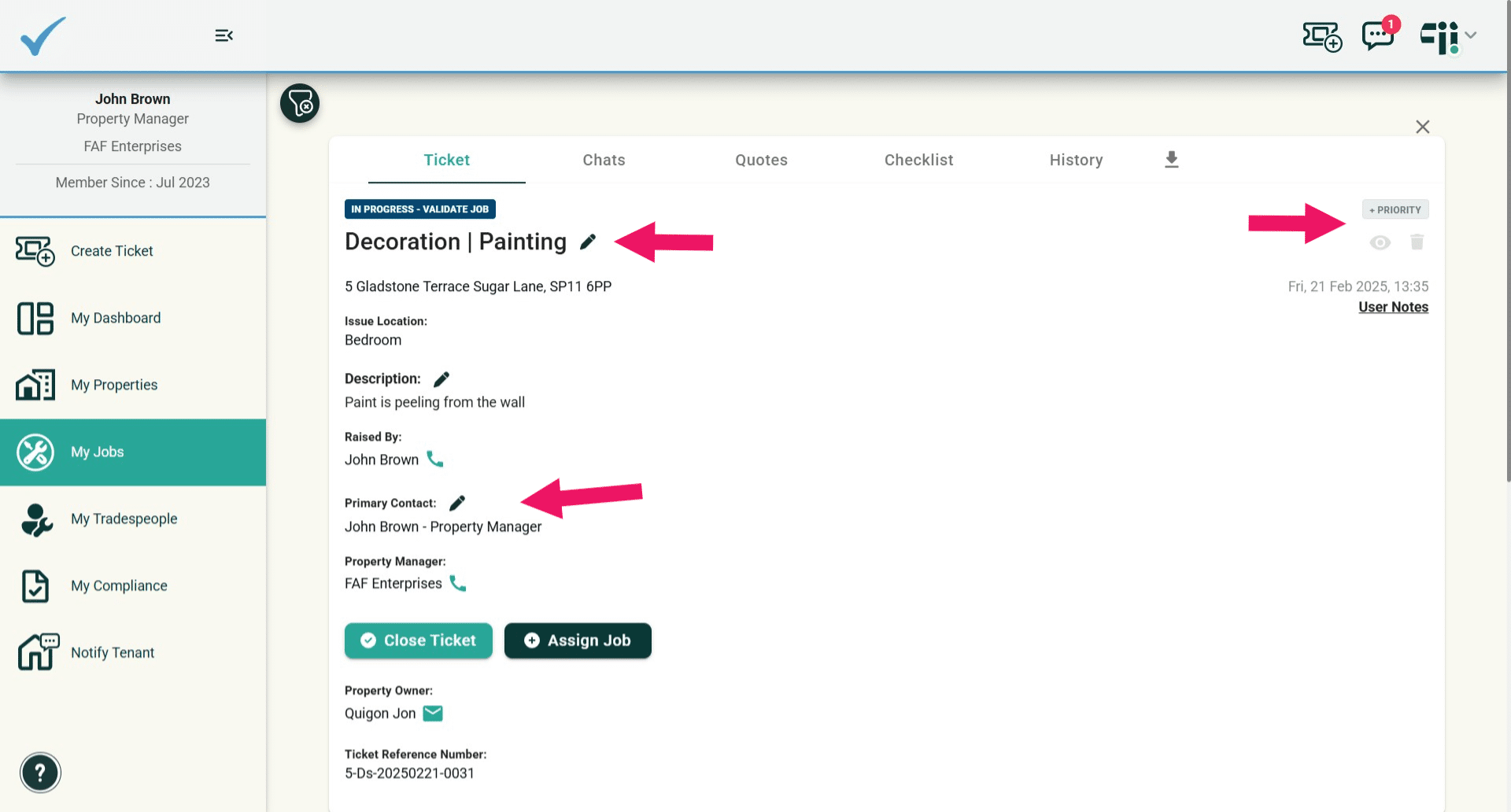
Use the pencil buttons next to the summary, description and primary contact to edit them. Priority, Mark Private and Delete Ticket controls are located in the top-right of the ticket layout.
- What chat options are available in the Chats tab?
The Chats tab includes both Public and Private Chat features, so you can communicate publicly or privately within the ticket.
- What are my options on the Assign Job page and can I notify trades when assigning?
The Assign Job page offers three options: 1) Assign a Trade, 2) Assign and Schedule the job, or 3) Request a Quote from a Trade. Upon assignment you can choose whether to send an email and/or an SMS to the trade.
- How do I schedule a visit and provide an estimated duration or custom time?
You can schedule the job at the time of assignment by selecting a time slot or choosing a custom time and specifying an exact time. You can also give an estimated duration for the job to inform tenants when multiple visits are required. After setting date/time, click Assign & Book Job — the trade and tenants will always be notified by email with the booking date and time.
- How do I request, add or manage quotes and where do they appear?
You can request quotes from up to 3 trades; they are notified by email and their responses flow back into your dashboard. Requested quotes appear in the Quotes tab of My Jobs; once a trade is assigned the job moves back into the Tickets tab. Use the + Quote icon to add a quote manually (enter details and optionally attach a file). You can send a quote to the Property Owner for approval via an email form; their response returns to your dashboard. You can log your approval in Fiixit and assign the trade. Each quote has its own timeline capturing key actions.