
Your guide to My Tradespeople - (Duration: 2 mins)
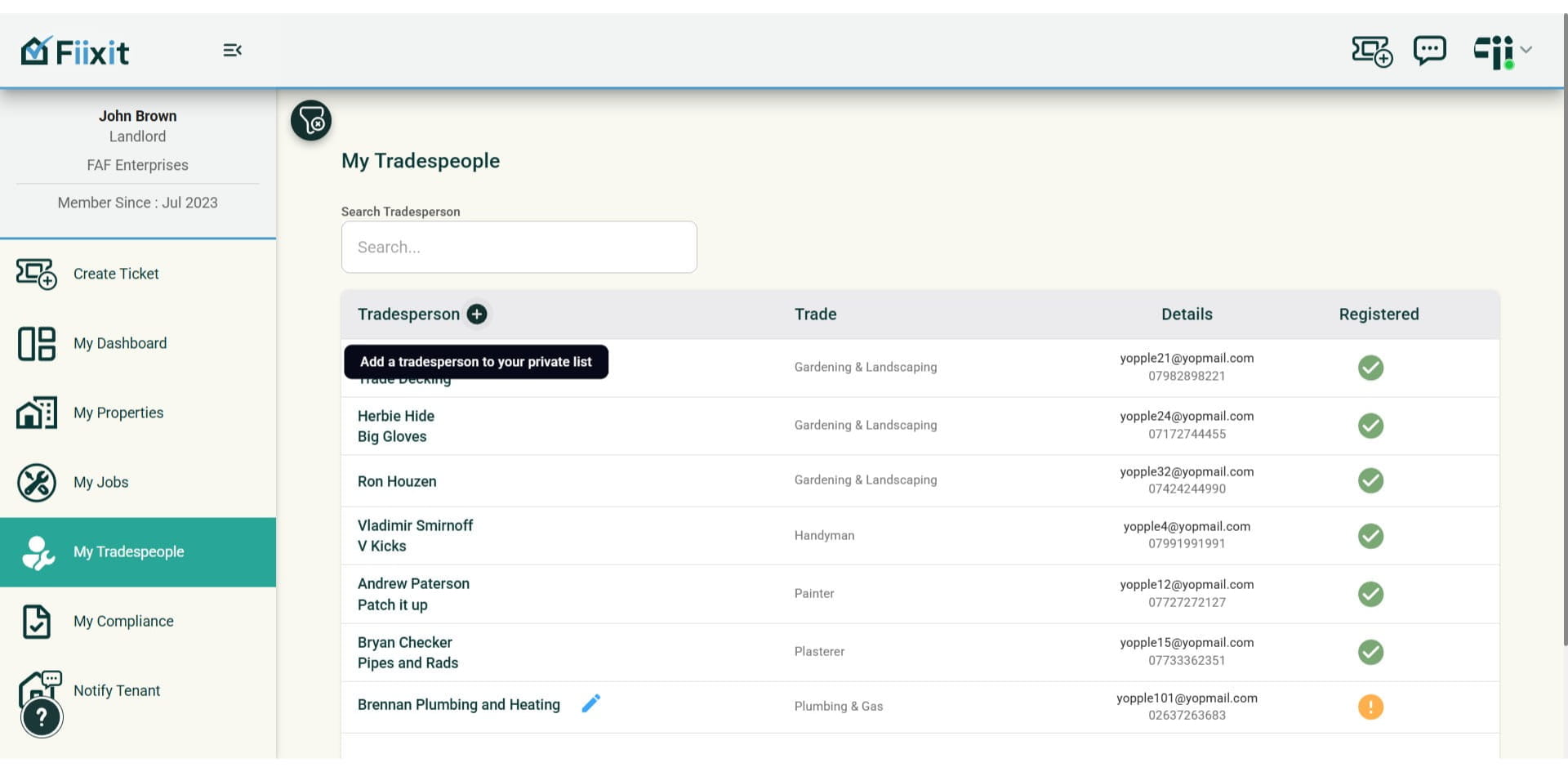
My Tradespeople lets you add your trusted tradespeople to your private account. Once added, you can assign jobs to them during the ticket process. They will be automatically invited to create a Fiixit account. Even if they don't sign up, they'll still receive essential email and SMS notifications for Fiixit tickets you assign to them.
 0
0Frequently Asked Questions
- How do I add a tradesperson to my account?
To add a tradesperson, click the 'Add Tradesperson' button on the 'My Tradespeople' page. Enter their email address, and if they're already registered with Fiixit, their details will auto-populate. If not, you'll need to provide the required information manually.
- What happens if a tradesperson I add isn't already registered with Fiixit?
If the tradesperson you're adding isn't registered with Fiixit, you'll need to provide their information manually. Once they create an account, their record will be updated, and a green tick will appear next to their name, indicating they're registered.
- How do I find a specific tradesperson in my list?
You can use the search bar on the 'My Tradespeople' page to quickly find a tradesperson by name or email.
- What does the green tick next to a tradesperson's name mean?
The green tick indicates that the tradesperson is registered with Fiixit. This means they have created an account and can access their details and information through the platform.
- Can I remove a tradesperson from my list?
Yes, you can delete a tradesperson from your list if you no longer need them or if you've entered incorrect details. Simply navigate to their record and follow the instructions for deletion.